
Challenge 3: Image Descriptions
What are Image Descriptions?
Images can communicate a lot of information, from illustrating a concept to showing relationships and patterns. But students who can’t see an image may miss that information unless it is also provided in text.
An image description is a verbal or written description of an image for someone who can’t see it. (AccessiblePublishing.Ca) They are most commonly used by people with disabilities that affect their vision, but they can also benefit people with other disabilities or people whose images aren’t loading due to lack of internet connection. Image descriptions can be added to course materials, websites, ebooks, presentations, and other digital content. Image descriptions come in two forms: alternative text (alt-text) and long descriptions.
Alt-text is a short, concise description of an image that is read aloud by screen readers and is required for all non-decorative images. Alt-text can be added to the HTML of an image usually through the tool’s (PowerPoint, your LMS, WordPress) settings and will not show up on the page, but will be picked up by a screen reader. Alt-text should be 125 characters or less.
Long descriptions provide more detailed information and are used for complex images such as maps, graphs, and diagrams where more detail is needed. Long descriptions are generally included within written material related to the image.
Why Does This Matter?
Image descriptions help ensure that important information communicated visually is accessible to students from the beginning. This is especially important in education, where images are often used to explain concepts and provide information and not just to make a page look more interesting. Student who use screen readers, have disabilities that impact their vision, or have inconsistent internet connection can benefit from image descriptions.
Without that description, a student who relies on a screen reader or cannot see the image would have to guess what information the image contains. Image descriptions can be used anywhere that digital images are used.
Examples
Imagine a course textbook includes a map showing the territories covered by the numbered treaties. A caption might tell students that it’s a map of the numbered treaties, but that doesn’t tell a student who can’t see the image what the image is trying to convey.
A general caption for the image below might read: “A Map of the Numbered Treaties”.
However, the image description would read: “A map of Canada showing the location of each of the 11 numbered treaties and the dates they were signed. The treaties cover all of central Canada and parts of British Columbia, Ontario, Northwest Territories, and the Yukon”.
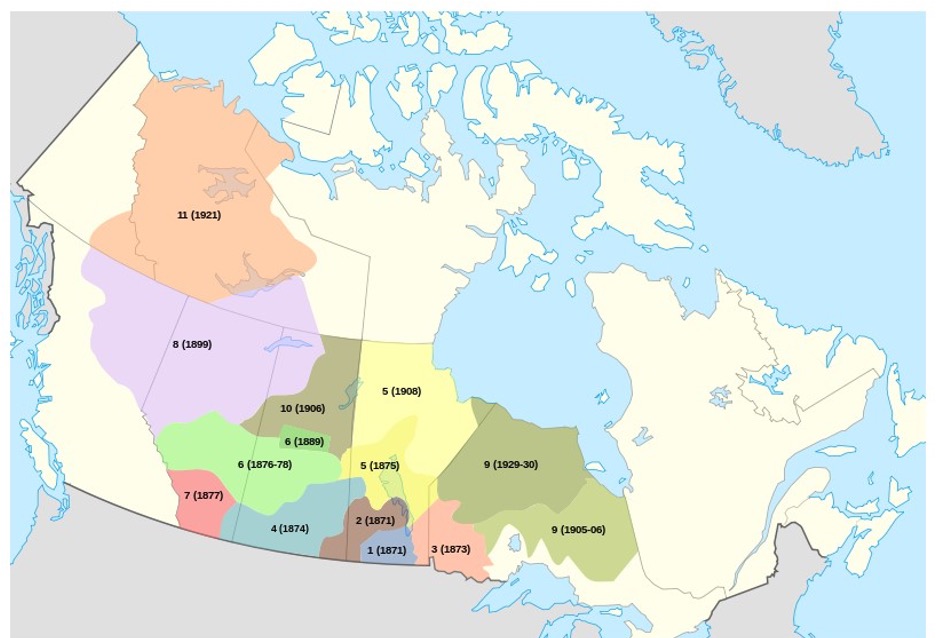

But how do we write a good image description? What information do we need to include?
There is no single “right” way to describe an image. The goal is to identify the important information a student needs from the image, based on its context.
Here is a helpful framework to get you started on thinking about the most important and relevant details of an image:
Object: What is the main focus of the image?
Action: What is happening? What is the object doing?
Context: What else does the reader need to know about the surrounding environment?
Below are six points to consider when writing an image description:
Try It Yourself!
Choose an image from your course material. It could be a photograph, chart, map, or other visual.
Step 1: Decide if the image needs a description.
- Ask yourself: what information would students lose if they couldn’t see this image?
- If the answer is “nothing important,” the image may be decorative.
- If important information would be lost, continue to Step 2.
Step 2: Write your description.
- Take a minute to write down 5–10 things you notice about the image.
- Then turn those observations into a short image description. As you write, consider:
- What is the most important information?
- Who is my audience?
- What is the purpose of this image?
- Can I make my description more concise?
- Have I started with the most important information?
- Am I describing what I see rather than making assumptions?
Remember that there isn’t one correct description. Different people will notice different things, and that’s okay!
Use the comment section below to reflect on your process.
Further Resources
Up Next
In the next challenge will be looking at accessible file formats and how to ensure all students can access your course materials with ease.
This challenge is adapted from the “BCcampus Accessibility Bites Series: Image Descriptions” by Josie Gray, used under CCBY 4.0
Caterina Valentino
Good day,
I was curious about the map, Map of Numbered Treaties of Canada, used in the introduction to this module. Herte is what I found and learned.
Step 1: Decide if the image needs a description.
• Ask yourself: what information would students lose if they couldn’t see this image?
• If the answer is “nothing important,” the image may be decorative.
• If important information would be lost, continue to Step 2.
The descriptive information in the challenge notes reads:
Imagine a course textbook includes a map showing the territories covered by the numbered treaties. A caption might tell students that it’s a map of the numbered treaties, but that doesn’t tell a student who can’t see the image what the image is trying to convey.
Click the link for the map and it links to the Wikimedia Commons map.
This page is full of descriptive information about the land covered by each treaty. It not until the reader scrolls to the bottom of the screen that one can link a link to learn about each treaty. In the absence of a better description of the context for the map the point the author wanted to make about it is lost.
Step 1
Place the image in a context. Based on my interest and in the absence of a clearly define context, I wanted to learn about each of the 11 numbered treaties and the dates they were signed.
Short Alt Text / Link Description
“Interactive Map of Numbered Treaties of Canada. Select to open the full map page, then scroll to the bottom to access links for individual treaties.”
Detailed Screen Reader Long Description
“An image link leading to the interactive Map of Numbered Treaties of Canada. Activating this map opens the main treaty map page. Once on the main page, navigate to the bottom section to find direct links detailing each individual treaty (Treaties 1 through 11).”
The most important point I learned was to set the context for the reader. Write a good concise abstract for the image.
AI Gemini Flash helped me prepare the descriptors.
Regards,
Caterina
Tracy
Great lesson helping me understand when to use Alt Text and when to use more information in either the image descriptor or in the lesson materials themselves. I especially appreciated the introduction to using charts to help describe complex images, as complex images do appear in some of my materials. This lesson has me reflecting on what might be best considered in the lesson materials themselves to help with the learning integration of these more complex images, instead of just speaking to them.
Linda O'Donoghue
I really enjoyed this lesson as it made me realize the importance of the images that are chosen for a lesson or workshop. In reviewing an upcoming session plan I created, I noticed that some of my images were for ‘decoration’ only. I did find it challenging to choose images for this particular session as the concepts are more abstract; however, I also dug into the ‘why’ I need images in my presentations. I still stand by the use of images as a way to perhaps convey the ‘feeling’ side of learning. So, in saying all this, I agree that an image can be utilized for many reasons and that the descriptor needs to be succinct and meaningful.
Thank you for this session!
Heather Mitchell
My description: “Man sitting behind a table using a laptop. In front of him and hanging from the table is a poster titled Accessibility Feedback”, captures the subject, action and contextual element—the Accessibility Feedback poster.
There are many more details in the picture; for example, he is wearing glasses, a name tag, and lanyard. He has a take out coffee cup. In the foreground and background are other computers and monitors, a coffee serving pot, a bouquet of flowers, and plates of food. I didn’t include these because they do not contribute enough meaning to explain why they are there and risked adding assumptions, such as that it was a meeting in session.
To the question of whether a descriptor is needed (informational vs. decorative), it was a toss-up. I would argue for including it because it supports the context of the whole document, rather than being directly related to the information that follows it on the page. This is despite the fact that alternative text should describe the image’s meaningful content rather than explain why the image was included in the document. However, by including it, the audience is offered an equitable experience. If a sighted reader receives the contextual message conveyed by the image, there is a good argument for making that information available to someone who cannot see it.
The question, “Can I make my description more concise?” was fun to work with. I wrote my first description based on the words I’d written down, then, upon rereading it, could see how I could tighten it or be more precise. For example, “Man sitting at a table” became “Man sitting behind a table” and “using a computer” became “using a laptop”.
Heather Mitchell
The BCcampus Accessibility Toolkit – 2nd Edition link does not open.
bdzioba Post author
Thank you Heather! We have updated the URL now to correct the broken link.
keith tyler
understanding the difference between alt text and image descriptions is a game changer for me. For the longest time I have been conflating the 2. Add this to keeping the description focused on the intent of the learning rather than a blow by blow descritpion of the entire picture leaves me a lot more confident in my desgin choices
Janet
My answer: “The program life cycle begins with program design and development, followed by implementation and delivery, monitoring and review, and revisions and improvement, which inform the next cycle of program development.”
I’ve provided alt text/descriptions before but hadn’t thought too deeply about them. I think both the distinction between the two and the rationale/thinking behind each are important.
Here are the questions I considered:
What does that image communicate?
Is it already represented in the text on the page?
What are the significant details if you aren’t able to view the image?
Can that info be conveyed briefly (alt text) or is it more complex (information, relationships, sequence, or data; long description)?
If the image was removed completely, would a user still understand the important information?
As the previous entry indicated, these give me more confidence in making decisions around image descriptions.